Embedding videos to WordPress web site
Introduction
WordPress is the most popular website platform in the world. It provides option to add different themes and 3rd party plugins to the site.
Embedding videos to WordPress site depends about the tools you use on your WordPress site to manage the content.
Here we present some examples:
- Embedding video using iFrame embed code + HTML block
- Embedding video using Icareus WP Plugin + short code
Embedding videos to WordPress pages
Using iFrame embed code + HTML block
All the WordPress Editors include option to include HTML block to web page.
In this example, we show how to use iFrame embedding with Elementor tool.
First open the web site where you want to add the video.
The select from your tool meny the HTML block option and add / drag&drop it to the place where you want to add the video:
The click the HTML block editing open:
Go to your Icareus Suite account -> Assets and find the find video you want to embed:
Select the Embed option under burger menu (it will open a pop-up overlay):
Here you can also select the VOD player, which you want to use when embedding.
Then highlight and copy embed text:
And paste it to the WordPress elementor:
Then you can immediately see the video there. Push Save / Update and you are ready to go!
Using Icareus WP Plugin

Using Icareus WP Plugin
First you need need to install Icareus WP plugin called (Icareus Suite VOD).
After the plugin is installed and active, you can use short codes:
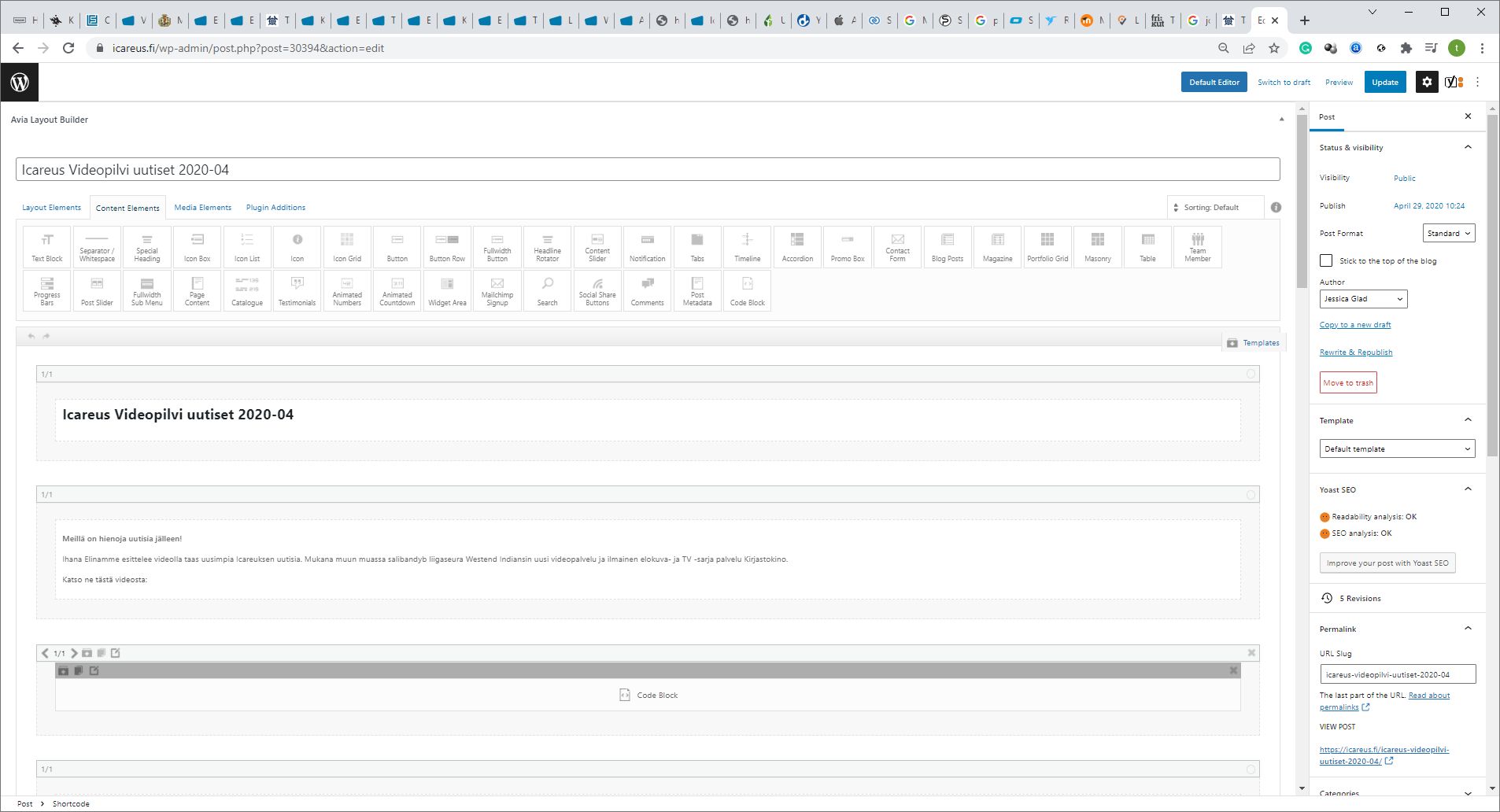
Open the page where you want to add the video. Open Content Elements and Drag&drop "<code block>" element to the place where you want to add:
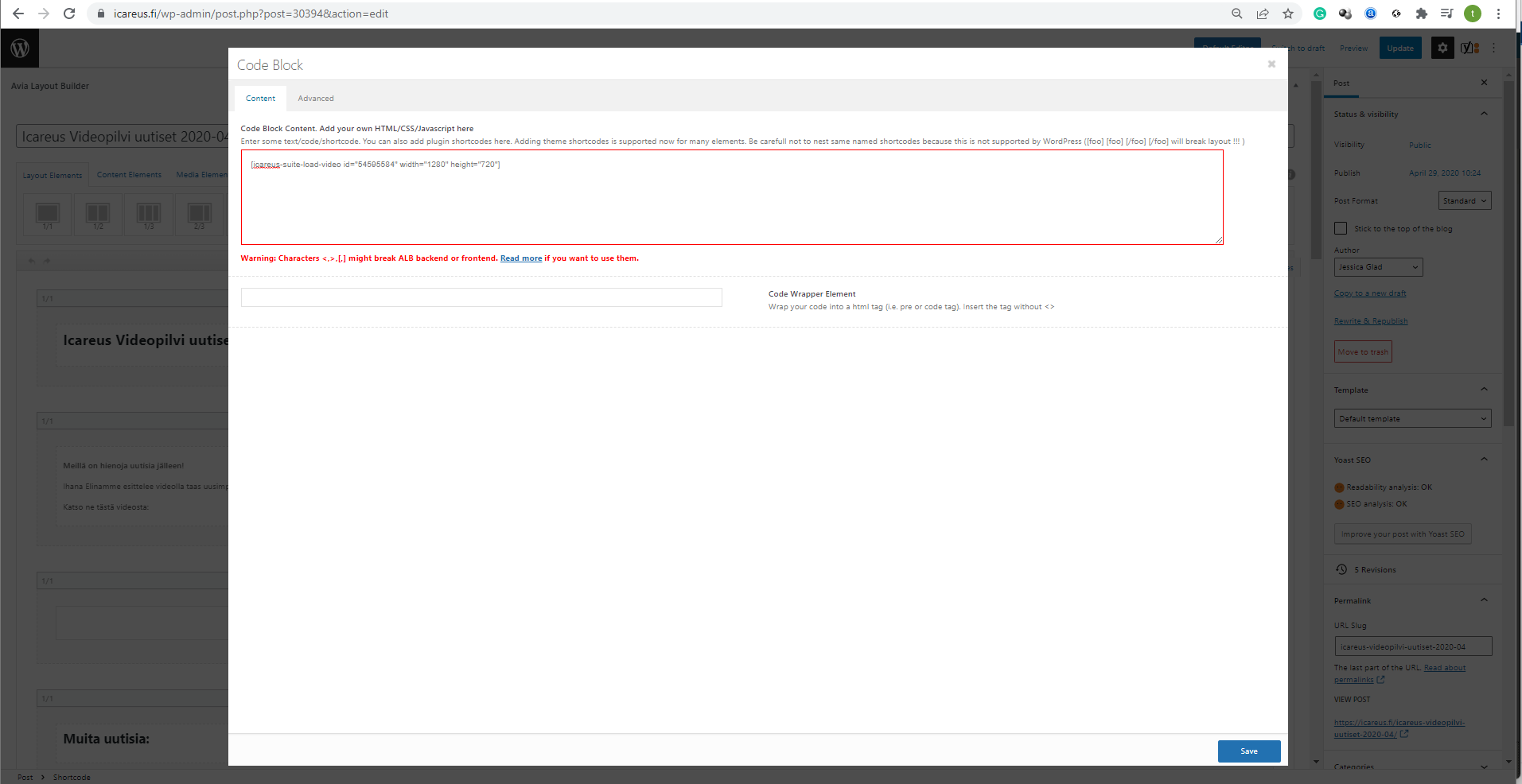
Open the <code block> element the paste the short code to code block, e.g.:
- [icareus-suite-load-video id="54595584" width="1280" height="720"]
Notice that video ID is received from the Icareus Suite video cloud under each video. You can also defibe the video size on the website:
Push "Save".
Then you can see the video on the page:
Related Articles
Embedding videos to WordPress web page
Introduction WordPress is the most popular website-building platform in the world. It provides many options to add different themes and 3rd party plugins to your site. Embedding videos to your WordPress site depends on the tools you use on your ...Embedding Videos and Video Pages to Microsoft SharePoint
Introduction Microsoft Sharepoint is the largest and most used knowledge sharing environment for organizations and teams. Icareus Video Cloud can be used for managing and publishing videos on SharePoint. There are two steps required when embedding ...Embed a video player
Introduction Embedding a video player to your web site (e.g. implemented with WordPress) is straighforward via iframe or using our javascript embed option. Iframe Embed Iframe embed is the most common way to embed content to a web site from 3rd party ...Embedding Videos to Microsoft SharePoint
Introduction Microsoft Sharepoint is the largest and most used knowledge sharing environment for organizations and teams. Icareus videocloud can be used also for managing and publishing videos on SharePoint. The advantages of using Icareus videocloud ...Managing Videos
Introduction VIdeos are the core of Icareus Suite. The management of videos is described in this chapter. Managing Video Assets Add New Videos to Cloud Icareus offers four (4) ways to add content on the platform: Manually via Icareus Suite web user ...