Managing Videos
Introduction
VIdeos are the core of Icareus Suite. The management of videos is described in this chapter.
Managing Video Assets
Add New Videos to Cloud
Icareus offers four (4) ways to add content on the platform:
- Manually via Icareus Suite web user interface
- Via webpage without login
- Patch uploading through watch folders
- Via Icareus Suite API
You acan read more about those from here Video Ingest - Uploading Videos -page.
Search Videos
Videos page include Search -function in top corner. You can use for searching some specific asset. It is especially useful and convenient when you have hundreds or even thousand of different video assets on your service. The search is done based on the title or description of the asset.
Just write your search text to the search box like in image below:
The result is shown on the asset list:
Video tool set
There are multiple tools that can be used when working with a video. The tool icons are shown in the image below:
The tools are opened from the "burger" -icon.
The tools shown are (from left to right):
Tool
| Description | Value | |
|---|---|---|
| Analytics | Takes the administrator to the analytics page of that asset | Link to Analytics |
| Embed | Allows administrator to get the embed link to asset and place it on the web sites | Embed code |
| Re-Transcode | Allows administrator to re-transcode the asset's video, if e.g. some transcoded version has failed | Activate transcoding |
| Share | Allows administrator to create a Share link to video asset | Share link |
More info about these on separate articles.
Update an Asset
Select a category/genre or 'All assets' to display a list of available assets for a particular category and click an asset to edit it.
Video Asset's Metadata
Publishing Info
Archiving Videos
Video Asset's Metadata
INFO
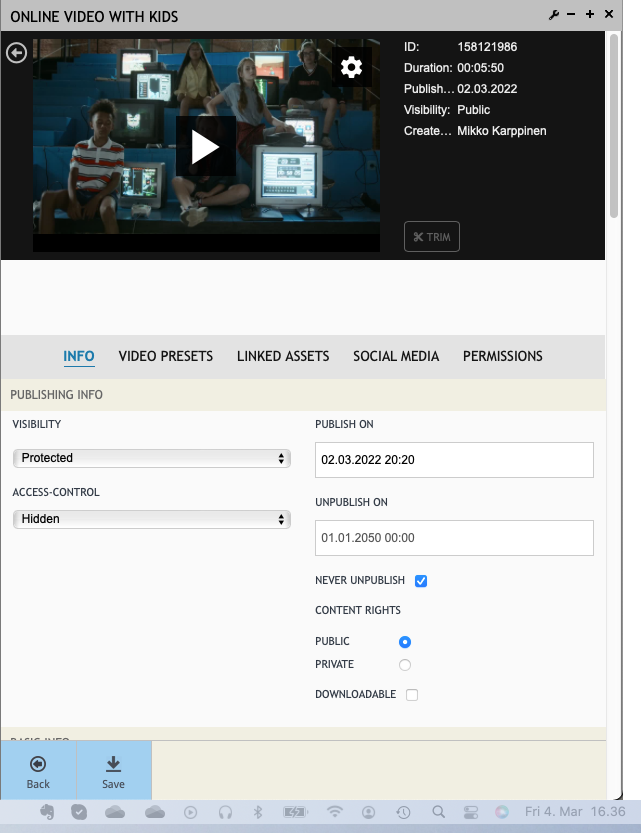
Info is the main view when a video asset is selected. It enable admin to see the status of the video, preview it and manage its metadata as shown below.
Publishing Info
The Publishing Info section of the INFO tab let's you set values related to publishing of the asset.
Publish On
This is a date that controls when the asset will be made visible on public facing sites. Note that the time is set in UTC.
Publish End
This is a date that controls when the asset will no longer be listed on public facing sites. Note that the time is set in UTC.
Visibility
Asset visibility can be set to one of three possible modes (with one of them including additional options). Please note that while asset visibility controls where and how an asset is listed, there are still other factors when it comes to determining when an asset can be played. Such as if the asset belongs to a package, it will not be playable by users who do not own the package.
Possible values for asset visibility are:
- Public - Public assets are visible to everyone. However where they are listed might depend on what categories they are a part of. But as a general rule, public assets are listed freely on public facing sites.
- Private - Private assets are only listed for signed in Suite users (such as subscribers) of the Organization. Where the assets are listed depends on what categories they are a part of.
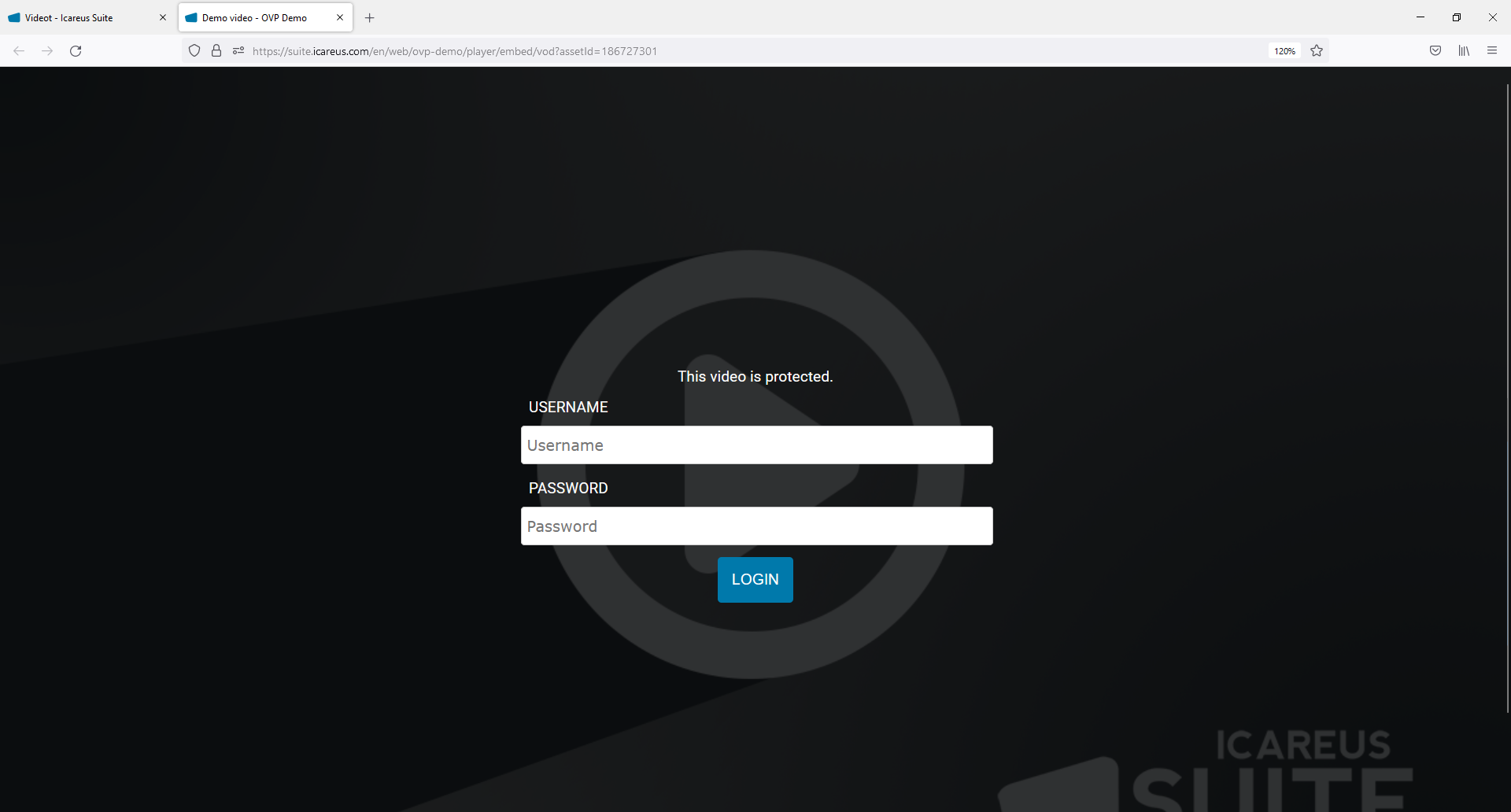
- Protected (Username & Password) - A protected asset that has a username and a password is not publicly listed anywhere. If a video playback page is accessed for the protected asset, the user is prompted to enter asset specific credentials before playback is allowed.
- Protected (Hidden) - A protected asset that is hidden (meaning it does not have a username and a password) is not listed anywhere. However if the video playback page is accessed for the protected asset, playback is allowed.
Asset visibility table
Asset Visibility | Listed in Public Pages | Playback allowed | Additional Notes |
Public | Yes | Yes | Additional playback checks apply: packages, location restrictions... |
Private | Only for signed-in Suite users | Only for signed-in Suite users | Additional playback checks apply: packages, location restrictions... |
Protected: Hidden | No | Yes | Additional playback checks apply: packages, location restrictions... |
Protected: Username & Password | No | Only after correct credentials are provided | Additional playback checks apply: packages, location restrictions... |
An example when video is protected with username & Password:
Archiving Videos
In the case of Icareus Video cloud, video archiving is easy. When you want to remove a video from public viewing, but you don't want to delete it permanently, the video publishing settings are changed from the Info tab:
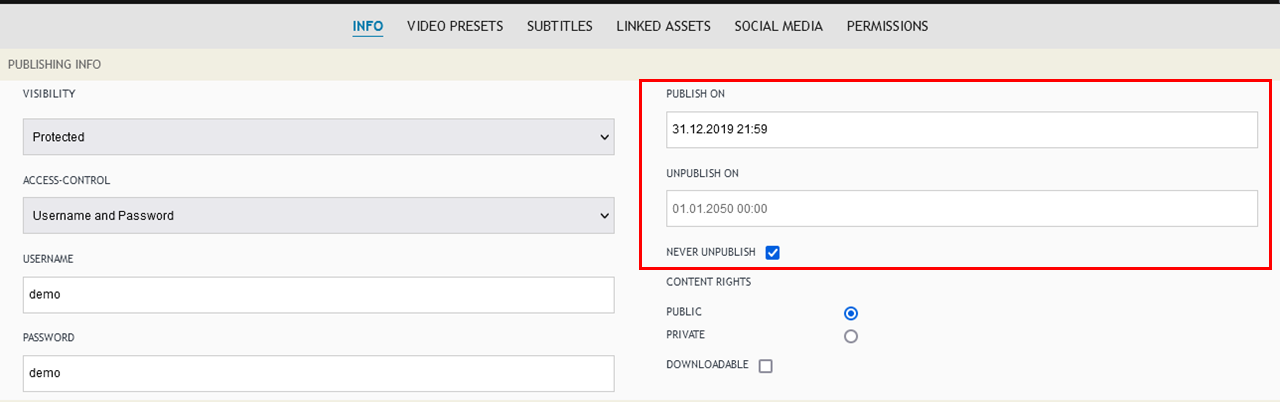
If you have "Never unpublish" as selected, then remove it, select the date when the video will go out of public view and be archived:
If you have "Never unpublish" as selected, then remove it, select the date when the video will go out of public view and be archived:
If you want it to happen immediately, you can change the publish end date to any time in the past.
Push Save and it is done.
Deleting Videos and Recycle Bin
If you want to delete the video completely from the Icareus Video cloud, you can open the "burger" or shortcut menu directly at the video to be deleted:
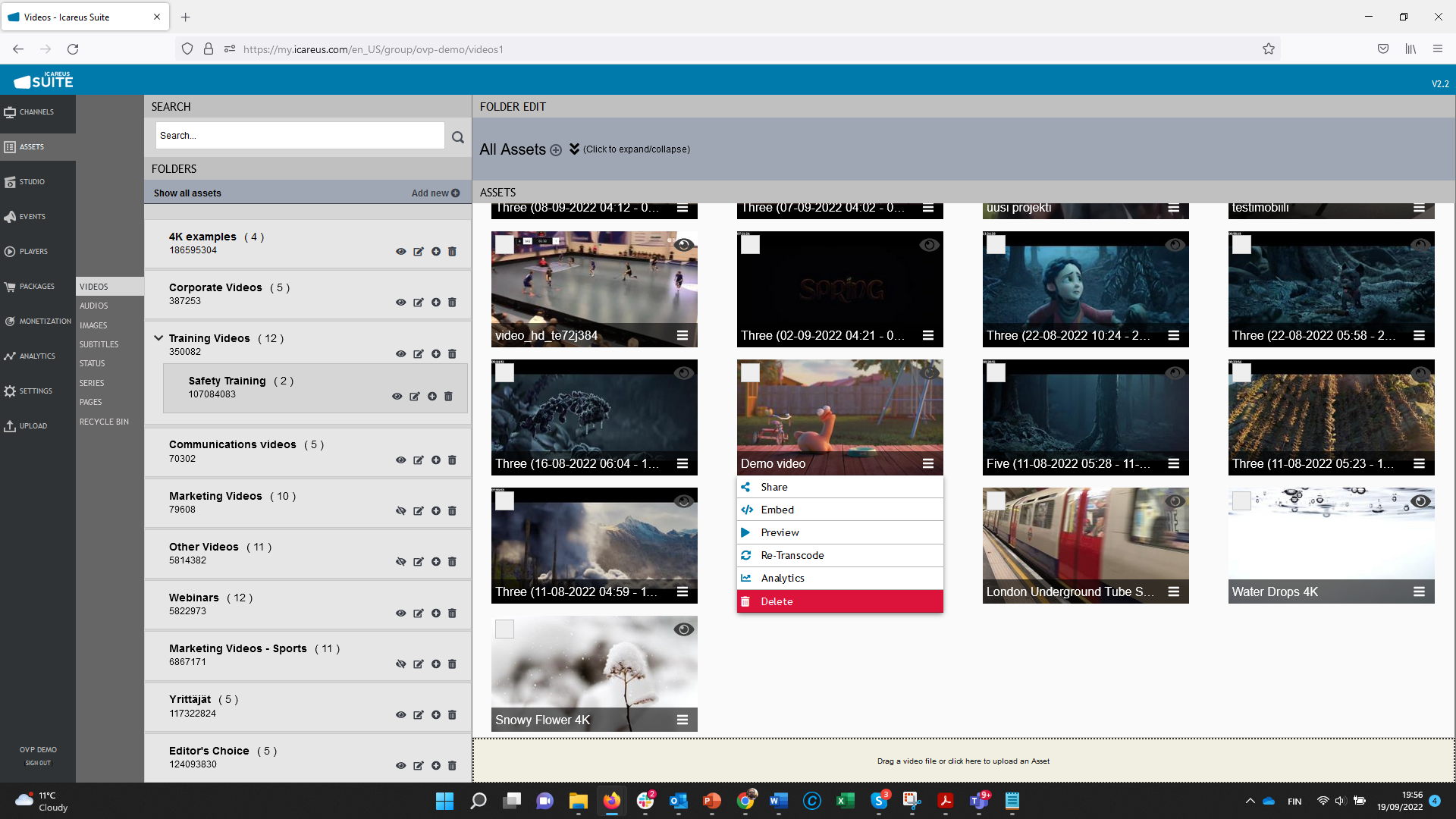
And from there select Delete:
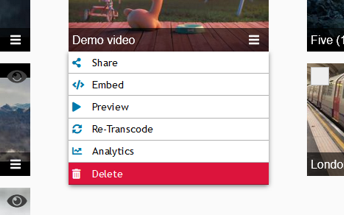
However, the videos are not deleted for good at this stage, they are moved to the Recycle Bin:
And from there select Delete:
However, the videos are not deleted for good at this stage, they are moved to the Recycle Bin:
Recycle Bin can be found in Videos -> Recycle Bin. Deleted videos stay there for 30 days, after which they are automatically deleted permanently. During the 30 days, however, the user can either directly delete them permanently in the Recycle Bin interface by pressing the Recycle Bin button next to the video, or restore the video by pressing the Restore button.
Video Presets
It is possible to associate video files with an video asset. The files can be encoded using various encoding parameters to support different end-user devices. The set of encoding parameters is called preset.
The common scenario to assign a video clip to an asset is to upload a file for a certain preset and mark the file as master. In the best case the file should be encoded with the highest resolution and bitrate. Once the file is uploaded, it can be used to generate video files for other presets.
The presets are transcoded automatically from the Master file. Find more info on Transcode section in this Manual.
Subtitles and Captions
Adding subtitles and captions can be done under each asset too on the own tab.
Read more
Linked Assets
Linked assets show other assets on Icareus Suite that relate to this video asset. This way it is possible to define e.g. the correct subtitle files or movie posters that should be used with this video.
Permissions
Persmissions -tab defines the Teams and Users that have access to this Video Asset. The access level depends on the users role.
If access is give to a Team, users are given access level based on their role.