Introduction
The multinetwork feature in Icareus Playout opens the possibility to output several Networks (or Transport Streams over IP) from a single Playout server. Each Network may have it's own set of configuration parameters as well as datacasting services.
The basic idea is to add DVB Services to a Network and by selecting Carousels and AITs for these DVB Services manage the distribution of TV Applications on different Networks. To output a e.g. HbbTV Application the following steps need to be done:
- Create and configure a Network
- Create a DVB Service and add it the the Network
- Create a Application Carousel and add it to the DVB Service
This gives the full flexibility to either have one DVB Service (and TV Applications) on one Network or to have separate DVB Service for each Network, thus deciding where and when each TV Application should be distributed.
Additionally, it opens the possibility to regionalise the same application for different parts of the actual Network by having e.g. regional news distributed over-the-air.
For service operators, the value comes from the fact that a single server can be shared by many broadcasters, even in different multiplexes/transponders.
In practice, each Network contains one or several Actual subnetworks, and those in the system represent an individual transport stream with DVB Services, data services, configurations, tables, etc. It basically offers the possibility to get rid of the expensive remuxing of PSI/SI, EIT and data services by defining the (regional) networks/multiplexes/transponders at a single location.
The management of the networks is done with the intuitive 'Networks' tree, which gives easy access to all network parameters.
Defining a Network is usually the first step to do when starting to work with Icareus Playout.
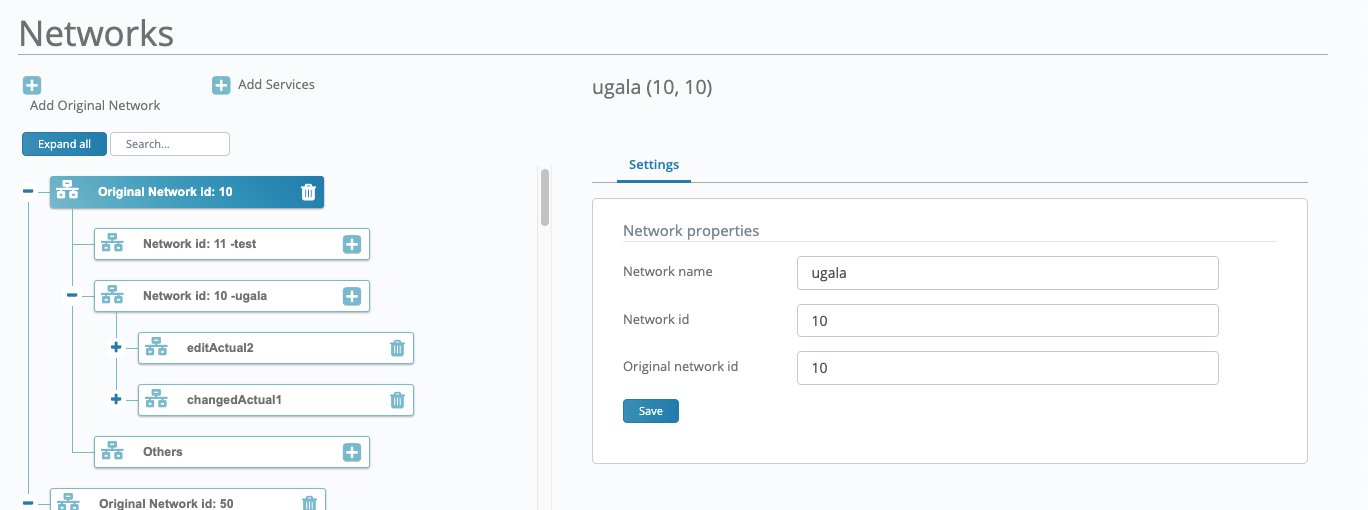 Example of a Networks tree in Icareus PLayout
Adding Networks
Building the structure starts with adding a original network to the system. From there on you can add actual and others networks as well as transport streams that are used then to define the output of the server.
Adding Original network
An Original Network is added by clicking the
plus button found at the top, just under the page header.
The system automatically adds your first network and it is possible to configure the necessary PIDs and Settings.
Adding the Transport Streams
It is possible to add as many transport streams under each Network as needed (within license limits).
Each transport stream represents individual output from Icareus Playout server.
Transport streams are added from the
plus-sign found from each
Network on the
Networks tree.
Pressing the sign opens a modal where the user can input all the transport stream settings.
Transport Stream Settings
General
The General tab defines basic network-related parameters that are however critical to the operation of the receiver.
Network Name : The logical name for the Actual subnetwork
Transport Stream ID : Transport stream id for the Actual subnetwork
Network bitrate : The maximum constant bitrate (CBR) for the selected Actual subnetwork, if null packet insertion is activated the system will fill the output transport stream to meet this value.
Otherwise the system will output a variable bitrate MPEG2 TS based on the PSI/SI and EIT tables and others. However the output may be higher than the defined bitrate if the combined PSI/SI and EIT table size is higher than the defined value. This approach ensures that the receivers will continue to receive valid signalling. There is no limitation set for the bitrates and thus the output purely depends on the capabilities of the hardware.
Generation
Table Generation defines the PSI/SI and EIT tables that are generated for this network.
From the tab, it is possible configure different PSI/SI tables generation.
Generate PAT: Enables generating Program Association Table.
Generate PAT reference to NIT: Add PAT reference to NIT
Generate PMT: Enables generation of Program Map Table.
Generate NIT: Enables generating Network Information Table.
Generate NIT descriptors:
If this setting is enabled, the following descriptors will be generated automatically to Network Information Table:
- Network name descriptor
- Delivery descriptor (requires that delivery settings have been set)
- Linkage descriptor with linkage type 0x0B for each IP platform
Generate SDT: Enables generating Service Description Table.
Generate SDT descriptors:
If this setting is enabled, the following descriptors will be generated automatically to Service Description Table:
- Service descriptor for each DVB service
- Data broadcast descriptor for each MPE stream
Generate BAT: Enables generating Bouquet Association Table.
Generate TDT: Enables generating Time and Date Table.
Generate TOT: Enables generating Time Offset Table.
Generate EIT P/F: Enables generating the Event information table present/following
Generate EIT Schedule: Enables generating the Event information table Schedule. Turning this off disables generating the schedule entirely, irrespective of the 2 following options.
Generate EIT Schedule 0-3: Enables partitioning of the Event information table Schedule for days 0-3. The partitioning is defined in the EIT Rates tab. The days 0-3 occupy the first EIT schedule subtable, with table id 0x50 for the actual schedule and 0x60 for the other schedule.
Generate EIT Schedule 4-7: Enables a partition of the Event information table Schedule for days 4-7, and another for the remaining days 8+. If the 0-3 option is selected, but the 4-7 option is not selected, then only days 0-3 will be generated into the schedule. The days 4-7 occupy the second EIT schedule subtable, with table id 0x51 for the actual schedule and 0x61 for the other schedule.
|
|
|
Rates
Rates define the different repetition rates for tables inserted into this transport stream in milliseconds.
PAT repetition rate: Repetition rate for Program Association Table
measured in milliseconds.
PMT repetition rate: Repetition rate for Program Map Table
measured in milliseconds.
NIT repetition rate: Repetition rate for Network Information Table
measured in milliseconds.
SDT repetition rate: Repetition rate for Service Description Table
measured in milliseconds.
BAT repetition rate: Repetition rate for Bouquet Association Table
measured in milliseconds.
TDT repetition rate: Repetition rate for Time and Date Table
measured in milliseconds.
TOT repetition rate: Repetition rate for Time Offset Table
measured in milliseconds.
AIT repetition rate: Repetition rate for Application Information Table
measured in milliseconds.
|
|
EIT Rates
EIT Rates define the rates used for different parts of the EIT Schedule and P/F tables.
EIT P/F repetition rate: Repetition rate for Event Information Table Present/Following
measured in milliseconds.
EIT Schedule repetition rate: Repetition rate for Event Information Table Schedule
measured in milliseconds. Please note the EIT Schedule bit rate per service -value as repetition rate affects the total amount of EPG data that can be outputted. Also note that when the EIT schedule is partitioned and Generate EIT Schedule 0-3 is and Generate EIT Schedule 4-7 is enabled, this repetition rate is used for the events for days 8+ of the schedule.
EIT Schedule bit rate per service: Maximum output bit rate of service for Event Information Table Schedule
measured in bits per second. If the EIT output exceeds this value, EPG events from the EIT Schedule table are dropped from the end to fit this bandwidth and repetition rate configuration. If value is set to 0, the output is unlimited.
EIT sch (0-3) Group Past repetition rate: When Generate EIT Schedule 0-3 is enabled, this is the repetition rate for past Event Information Table Schedule events
measured in milliseconds. In the current implementation, this option does nothing.
EIT sch (0-3) Group 1 repetition rate : When Generate EIT Schedule 0-3 is enabled, this is the repetition rate for the first partition of the Event Information Table Schedule,
measured in milliseconds. The schedule segments that are part of this group must be selected in right column. 8 segments equal one day, so e.g. to specify that the first partition should hold one days worth of EIT events, segments 0-7 must be selected. One segment equals 3 hours of events. To put the 2 first days of events in the first partition, specify segments 0-15. To put the 3 first days of events in the first partition, select 0-23. To put all the 4 first days (0-3) into this partition, select a range of 0-31. When group 1 segments have been configured by selecting from the menu, the focus will move to group 2 and so on. To get back to allocate group 1 again, one has to cycle through all the groups 1-5 after which group 1 segments can again be changed.
EIT sch (0-3) Group 2 repetition rate : When Generate EIT Schedule 0-3 is enabled, this is the repetition rate for the second partition of the Event Information Table Schedule,
measured in milliseconds. Like in group 1, a range of segments will specify which events will be part of the group. Only remaining segments, after the allocation of group 1 can be selected here as part of the second partition.
EIT sch (0-3) Group 3 repetition rate : When Generate EIT Schedule 0-3 is enabled, this is the repetition rate for the 3rd partition of the Event Information Table Schedule,
measured in milliseconds.
EIT sch (0-3) Group 4 repetition rate : When Generate EIT Schedule 0-3 is enabled, this is the repetition rate for the 4th partition of the Event Information Table Schedule,
measured in milliseconds.
EIT sch (0-3) Group 5 repetition rate : When Generate EIT Schedule 0-3 is enabled, this is the repetition rate for the 5th partition of the Event Information Table Schedule,
measured in milliseconds. If there's any unallocated segments left for days 0-3 after groups 1-4 have been specified, those segments must be put in this group.
EIT sch (4-7) repetition rate : When Generate EIT Schedule 4-7 is enabled, this is the repetition rate for the partition holding days 4-7 of the Event Information Table Schedule,
measured in milliseconds.
|
|
UDP Outputs
UDP output -tab defines the transport stream output for the selected Network. Each Network's transport stream can be outputted as IP multicast/unicast from two separate network cards to get as redundant output from a single server as possible.
For redundancy purposes it is recommended that the multicast addresses of the outputs are different as well as the Output devices. The outputs should be then connected to either an IP switch that can monitor the output or to a multiplexer that can do the same. An example is given below.
Enable UDP output:
USE RTP: Use RTP protocol to envelope the UDP stream
IP Address: Multicast address for the MPEG2 TS
Port: IP port in which the multicast should be transmitted
TTL: Time to Live for the IP packets
Output device: Defines the physical network interface card that is used to output the MPEG2 TS for this Network
|
|
Adding Services to Networks / Outputs
Services, whether TV or Radio, are added to each actual network with a drag-and-drop tool that is launched from
"Add Services" button.
It opens a list of services available on the server on right-hand side and user can drag and drop the desired Services for the correct transport stream in the Networks tree.
Editing Services in Networks / Outputs
It is possible to chance the SID (Service ID) of service that is added to a network.

Please note, that the change of SID affects only to the output of that particular network. If the same service was added also to other networks, the outputs of them remains unchanged.