Managing Live Events and Webinars
Introduction
Managing tools for the event allows the administrator to:
- Start & Stop of the manual recording of the event to create "speaker clips"
- Synchronize the slides with webinar speaker/presentation
- Moderate the Chat and Polling
Both recording and synchronization can be done under the "Control" tab of the event.
1. Manual Recording of the Events and Webinars

Please note that if 'Record event automatically' is selected in the info tab, the event cannot be manually recorded!
In the Control tab, it is also possible to record the event manually using the Start Recording button. You can start manual recording when the event is on (the event icon is green)
When manual recording starts, a blue blinking bar will appear on top indicating that the system is recording.
Manual recording can be stopped from the black square “stop recording” button.
After
the recording has stopped, there will be info text telling that the recording has stopped, video is being processed and will be available soon.
Automatic Recording of Webinars
It
is possible to set the webinar to be automatically recorded, however
there are a few things to keep in mind when using this option.
- It is not possible to set automatic recording for an event that is already ongoing
- It is not possible to remove the automatic recording option from an event that has already started or ended
- It is not possible to manually record an event if automatic recording is set
If
an event is set to record automatically, you need to make sure that
there is a stream incoming to the channel the event is using during the
start time of the event, and that the stream keeps going until the end
of the event.
An example:
An
event is set to record automatically and the start time is set to 13:00
UTC with a duration of 30 minutes, meaning that the event is going to
end at 13:30 UTC. What this means, is that at 13:00 the system will try
to start recording the incoming stream at the channel the event is set
to use. If at this time there is no incoming stream that can be recorded, the recording will fail.
At 13:30 the system will try to stop recording the stream. If
the recording has already stopped for any reason (such as that the
stream was ended before the end time), no recording will be made.2.
2. Synchronizing the slides
Synchronize the slides with Event Webinar speaker/presentation means that the end-user watching the online webinar event will see the slides changing on on their browser. automatically.
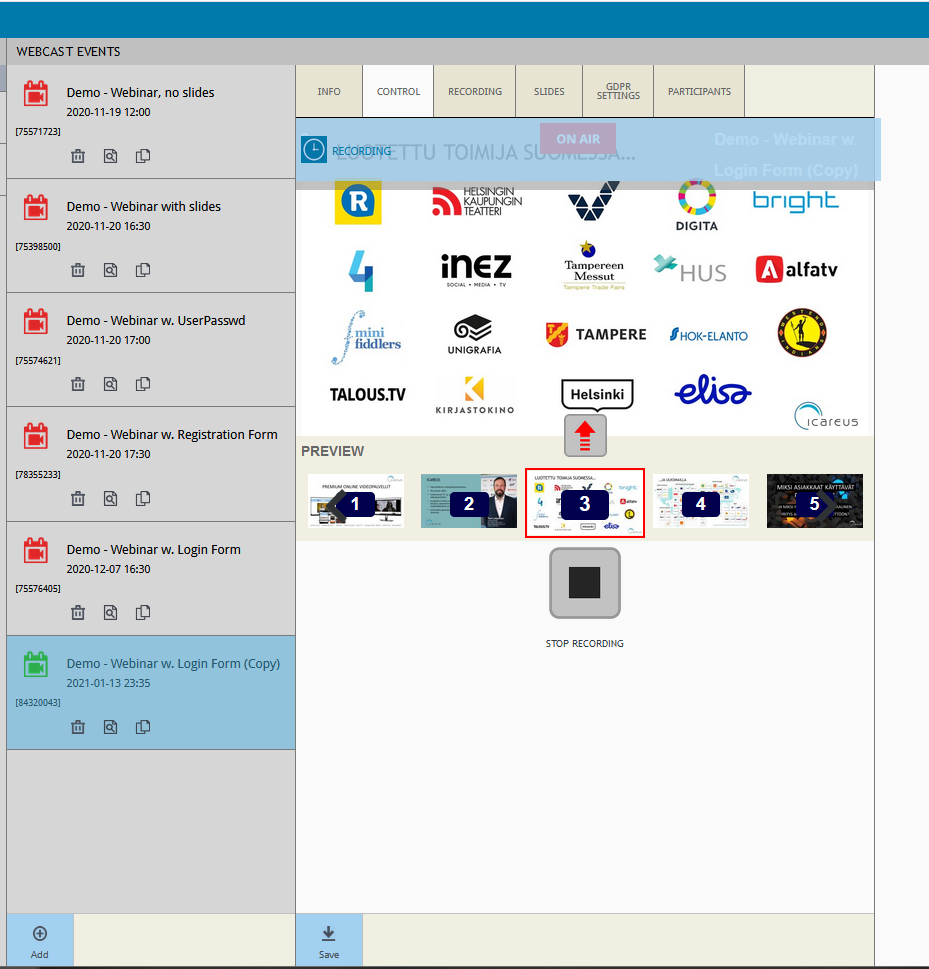
If the event is live, clicking the button with a red arrow pointing upwards above the list of slides will set the currently selected slide image as the active slide and change the slides on the player page in client browsers.If
the user clicks on 'start recording' and then changes the slides, the
same shall be recorded, so that when Webinar player is opened sometime
in the future, slides will change at the same time interval as recorded. The 'start recording' button will change to 'stop recording', which can then in turn be pressed to stop recording.
2. Synchronizing the slides
Synchronize the slides with Event Webinar speaker/presentation means that the end-user watching the online webinar event will see the slides changing on on their browser. automatically.The synchronization must be done manually by the event administrator on Control tab.
The
slides are shown above the 'start recording' button and can be
selected by clicking a thumbnail image or by using the arrow buttons.
The currently selected slide image will have a red border around it and
is displayed at the center of the list.
If the event is live, clicking the button with a red arrow pointing upwards above the list of slides will set the currently selected slide image as the active slide and change the slides on the player page in client browsers.
Related Articles
Four (4) Easy Steps for New Event or Webinar
Introduction With Icareus Suite Event Webinar it's easy to arrange live events on one or multiple different channels simultaneously, automatically record, synchronize slides and monetize events in many different ways. The web interface ...Create & Manage Events/Webinars
Creating an event Open Events -> Events. Create a new event by clicking on the "Create New Event" button at the top: The new event must be given at least a name and event duration for you to be able to save your new event. These mandatory fields will ...Selling Access to Premium Events
Introduction This article tells how you can monetize video events like sports matches, concerts, or webinars. There are two ways to monetize the event and sell access: Event Tickets: The end user can buy one or more ticket(s) to the single event ...Selling Access to Premium Events
Introduction This article tells how you can monetize video events like sports matches, concerts, or webinars. There are two ways to monetize the event and sell access: Event Tickets: The end user can buy one or more ticket(s) to the single event ...Events and Webinar Technical Requirements
Introduction To achieve a successful webinar, some technical aspects should be taken into consideration. This document tries to outline these from different perspectives. Video production and Ingest Streaming equipment The customer is responsible for ...