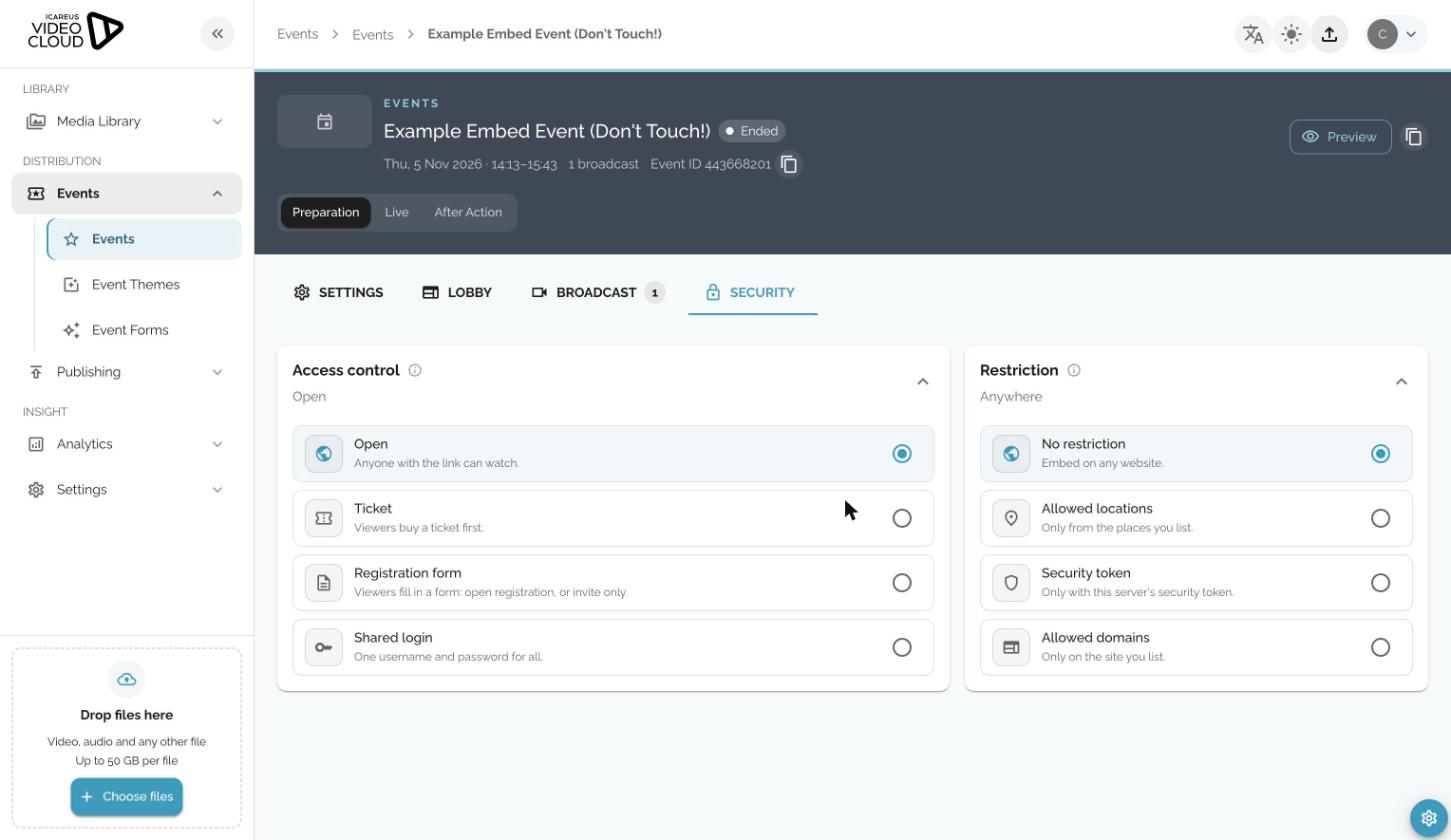
In Icareus Video Cloud: ticket sales are enabled per event by selecting Ticket (Viewers buy a ticket first) under Access control on the event's Preparation > Security tab.
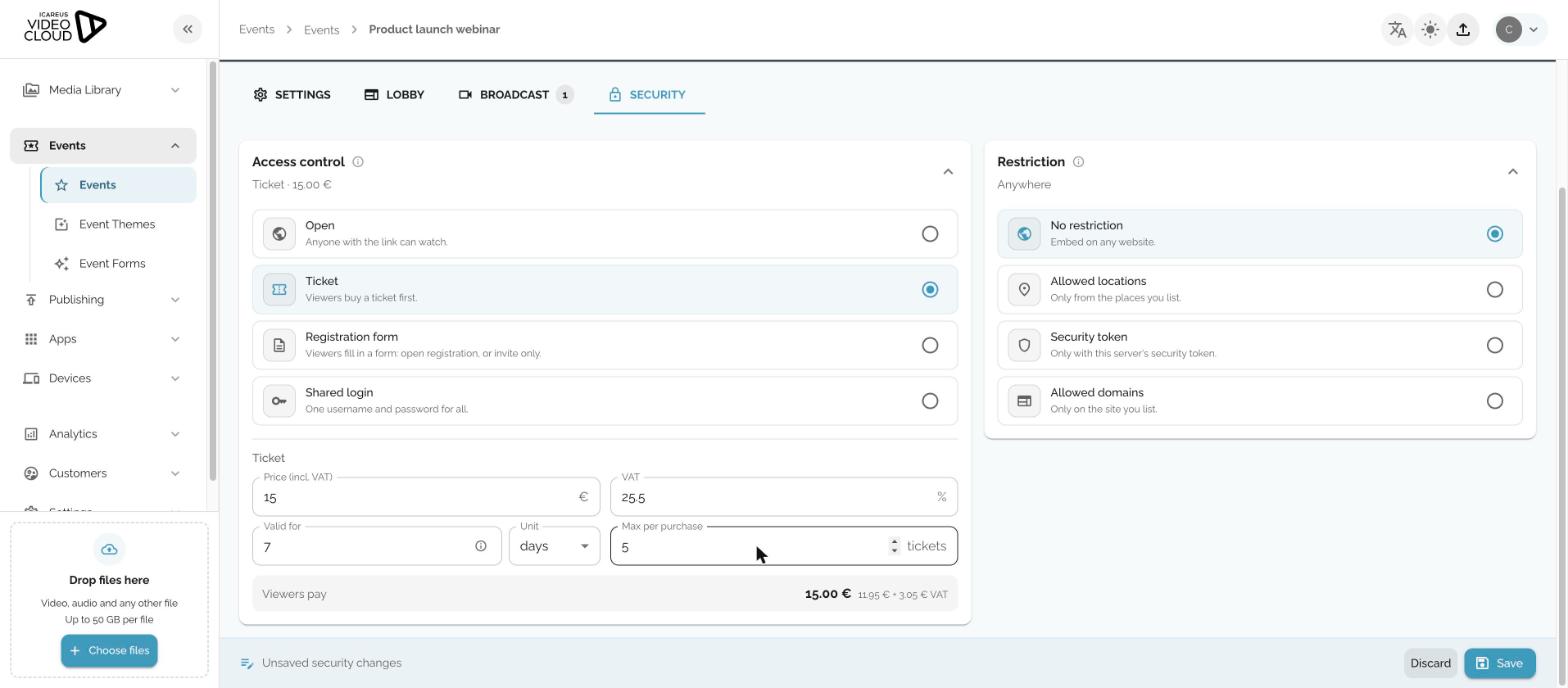
Under Ticket, set the Price (incl. VAT), the VAT percentage, how long a ticket is valid (Valid for and Unit, e.g. 7 days) and Max per purchase (how many tickets a viewer can buy at once). Viewers pay shows the final price and its VAT breakdown. Click Save to apply the settings.
Introduction
This article tells how you can monetize video events like sports matches, concerts, or webinars.
There are two ways to monetize the event and sell access:
- Event Tickets: The end user can buy one or more ticket(s) to the single event without registration to the system
- Event packages: The end user registers to the Video Cloud account and purchases access to the Event by buying a premium event package
Please notice that an Icareus Video Cloud customer must have a payment gateway/service providers' merchant account before they can sell tickets.
Event Tickets
When using tickets with premium events, the end-user can buy one or more ticket(s) to the single event without registration to the system.
A. End-user path
The end-user's path is as follows:
1. End-user goes to event page (URL)
On the event page they can either:
- Insert ticket number to access the content
- Buy ticket.
The user needs to select "Buy ticket to the event".
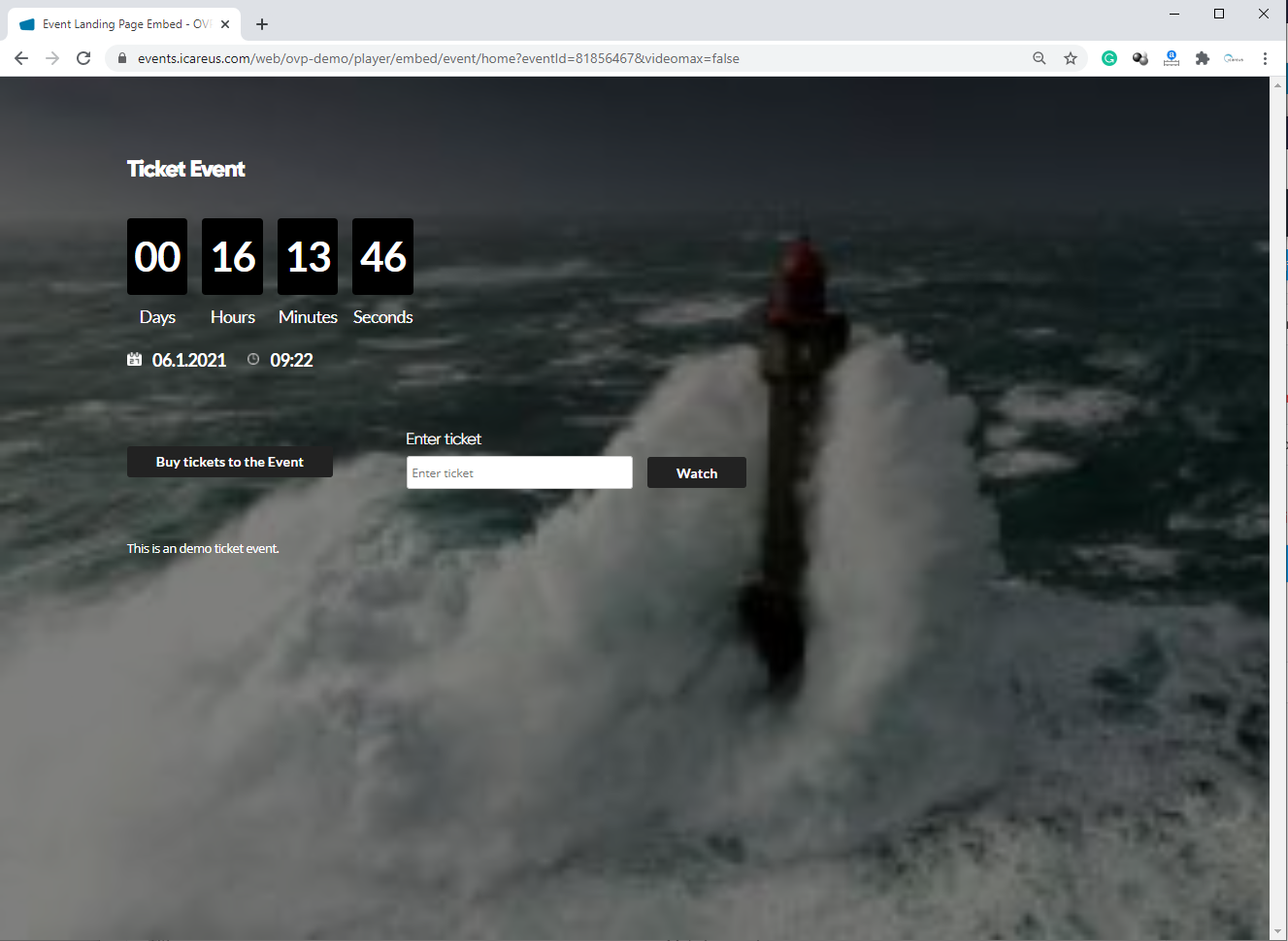 Event Landing page
2. Buying the ticket(s)
The end-user is taken to ticket selection page
They can select 1 to N tickets to purchase and then click "Order" to proceed.
3. Give email and select payment method
In the next phase the end user needs to give the email address where the tickets will be sent. Optionally, they can register or login to their account.
Secondly, the end-user needs to select their payment option (in the example account PayTrail or Bambora).
4. Payment
After selecting the payment option, the end-user is taken to the payment gateway's payment page, where they will make the payment.
When selecting e.g. Visa payment, they'll go to Visa credit card payment screen:
5. Confirmation
After succesful payment, the end-user is returned back to Icareus's system event page, showing confirmation.
From the "Back to homepage" link, the end-user is taken back to the event page.
6. Tickets
The end-user will then receive the tickets to the email address they gave:
(In this example the user purchased 3 tickets)
7. Consuming the tickets
End user can then insert the ticket number to the event page:
And then click "Watch" to access the event.
Subscriptions on the portal
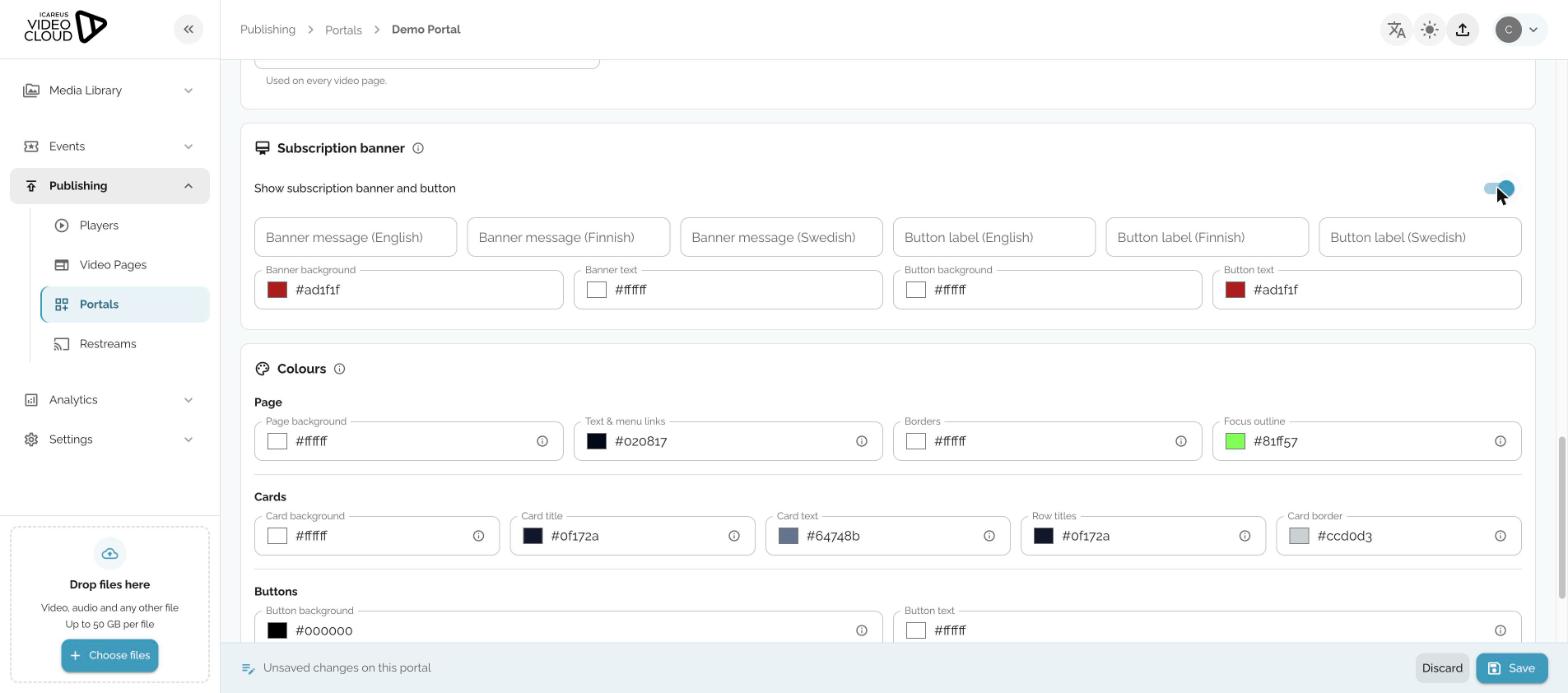
If you sell access with subscriptions on an Icareus portal, viewers need to be able to sign in. In Publishing > Portals, open the portal's Branding tab and turn on Show sign-in and Show subscription banner and button. Signed-in visitors without a subscription then see a banner inviting them to subscribe and a Subscribe button in the header. See Portals.